Office Crash: When Microsoft Word cannot open files on OneDrive, SharePoint & Co.
When Microsoft Word Crashes: How a Third-Party Plugin Can Bring It Down
Microsoft Word or other Office Application is usually a very stable application. When it starts crashing repeatedly, many users assume the problem lies with Office itself, Windows updates, or corrupted documents. In practice, a very common cause is third-party Office plugins that integrate deeply into Word.
You might blame Microsoft or Windows for this, but as in most cases it is not Microsoft. You update office, but some other plugins are not compatible with the new version. So, what to do?
One frequent example is a crash caused by the Seclore FileSecure Office plugin.
This article explains:
- How to locate this kind of issue
- Why Word crashes even though it is not the real cause
- How to safely disable the problematic plugin
Note, the same issue can be fixed for all other office applications!
The Crash Symptoms
Users typically report:
- Office application cannot open the file at the remote location.
- Office application crashing when opening
- Repeated crashes
In Windows Event Viewer, the error often looks like this:
Faulting application name: WINWORD.EXE
Faulting module name: Office2016x64Plugin.dll
Exception code: 0xc0000409
Faulting module path: ...\Seclore\FileSecure\Desktop Client\...
At first glance, it appears that Microsoft Word (or other office applicaiton) is at fault — but that is misleading.
Understanding the Root Cause
The most important line in the crash report is:
Faulting module name: Office2016x64Plugin.dll
This DLL belongs to Seclore, an enterprise Information Rights Management (IRM) solution that integrates directly into Microsoft Office.
What is happening internally:
- Word loads the Seclore plugin during startup
- The plugin performs low-level operations (file protection, encryption, policy enforcement)
- Due to a bug, incompatibility, or outdated version, the plugin triggers a memory violation
- Windows terminates Word immediately to protect system integrity
The exception code 0xc0000409 usually indicates:
- Stack buffer overrun
- Memory corruption
- Unsafe or incompatible plugin code
In short: Word crashes because the plugin crashes inside Word’s process.
Why This Problem Often Appears Suddenly
This issue commonly starts after:
- A Microsoft Office update
- A Windows update
- An update mismatch between Office and the Seclore client
- Security software not being updated in sync with Office
Reinstalling Office alone usually does not fix the issue, because the faulty plugin remains installed.
How to Disable the Seclore Plugin in Microsoft Word
If your organization allows it, disabling the plugin is the fastest way to confirm and resolve the problem.
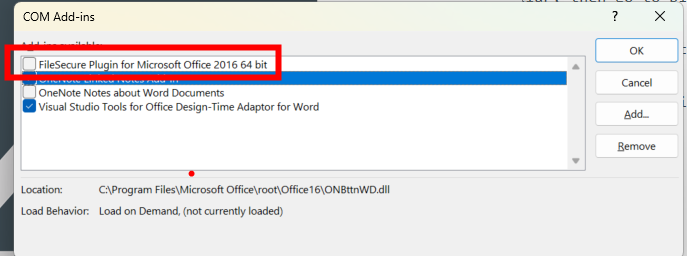
Method 1: Disable via Word Options (Recommended)
- Open Microsoft Word
- Go to File → Options
- Select Add-ins
- At the bottom, next to Manage, choose COM Add-ins
- Click Go
- Locate the Seclore add-in (or similar)
- Uncheck the plugin
- Click OK
- Restart Word
If Word opens normally afterward, the plugin was the cause.
Method 2: Start Word in Safe Mode (Diagnostic)
This method does not disable the plugin permanently, but it helps confirm the root cause.
- Press Win + R
- Run:
winword /safe - If Word works correctly in Safe Mode, the issue is definitely an add-in
Method 3: Update or Reinstall Seclore (Best Long-Term Fix)
If the plugin is required by company policy:
- Update the Seclore Desktop Client to the latest version
- If already updated, reinstall it
- Verify compatibility with the current Office build
In managed corporate environments, this step should be handled by IT support.
Key Takeaway
When Office APplications crashe:
- The faulting application is not always the root cause
- Third-party Office plugins run inside Word’s process
- A single buggy DLL can crash the entire application
In this case, Word is the victim — not the problem.